
Reliable WiFi is essential for homes, offices, and commercial facilities. A structured WiFi troubleshooting checklist helps identify issues quickly, minimize downtime, and guide smarter decisions about upgrades or professional support.
Why WiFi Issues Happen
Before diving into the checklist, it???s important to understand the most common causes of wireless problems. Knowing these factors makes WiFi troubleshooting faster, more accurate, and more effective.
- Interference from other devices and materials
- Poor router placement
??? Outdated equipment or firmware
??? Network congestion from too many devices
??? Security vulnerabilities
??? Incorrect configuration
Knowing these root causes makes troubleshooting far more effective ??? and helps you know whether a problem is simple or systemic.
WiFi Troubleshooting Checklist

A strong, reliable network is essential for homes, offices, and commercial spaces. Effective WiFi troubleshooting helps identify and resolve common issues, saving time, reducing frustration, and keeping all devices connected and running smoothly.
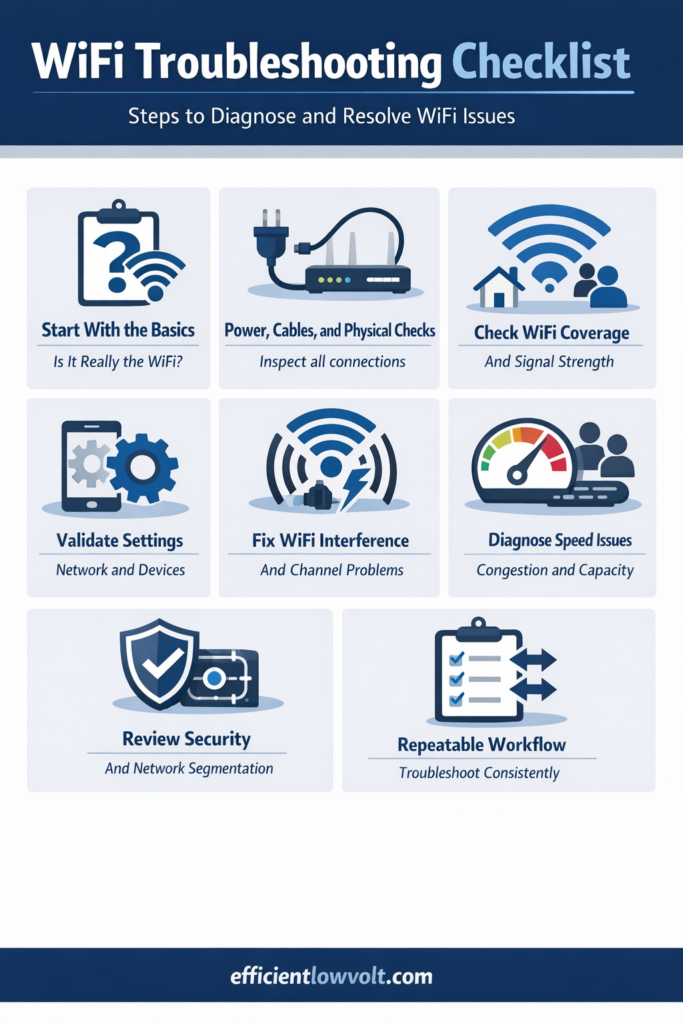
1. Start With the Basics: Is It Really the WiFi?
Before adjusting settings or buying new hardware, confirm whether the issue is truly with the network. Effective WiFi troubleshooting first verifies if problems stem from the WiFi itself, a device, or an application, saving time and avoiding unnecessary fixes.
1.1 Confirm the Scope of the Issue
- Check if multiple users or devices are affected, not just one laptop or phone.
- Test both WiFi and wired connections (if a wired PC is also slow, the issue may be the ISP or modem).
- Try loading different websites or cloud apps to rule out a problem specific to one service.
1.2 Run a Speed Test at the Source
- Connect a laptop directly to the modem using an Ethernet cable.
- Run an online speed test and compare the result with your subscribed plan.
- If wired speeds are poor, the issue is likely your ISP or modem, not your WiFi.
For business owners, this distinction is important because it tells you whether you need to escalate to your internet provider or review your internal wireless design.
2. Power, Cables, and Physical Checks
Many connectivity issues stem from simple physical problems like loose cables, overheated devices, or mis???placed routers and access points (APs). Make these checks your first line of action.
2.1 Reboot Network Equipment in the Right Order
- Unplug the modem and router (and any separate access points or controllers).
- Wait 30???60 seconds to clear temporary memory.
- Plug the modem back in and wait until its lights stabilize.
- Plug in the router and APs and wait a couple of minutes before testing again.
2.2 Inspect Cabling and Hardware
- Confirm all Ethernet cables are firmly connected to modem, router, switches, and APs.
- Check for damaged, kinked, or very old cables (replace questionable Cat5 with Cat5e/Cat6 or better).
- Ensure devices have proper ventilation, are not overheating, and are powered through reliable outlets or UPS units in commercial setups.
For commercial facilities, it is advisable to document where all network equipment is located (IDF/MDF rooms, ceiling APs, outdoor enclosures) to avoid guesswork during incidents.
3. Check WiFi Coverage and Signal Strength
Coverage issues are among the most common WiFi complaints in homes, offices, and retail or hospitality environments. Wifi Dead zones, weak signals, and inconsistent performance usually point to placement or density problems with your wireless hardware.
3.1 Quick On???Site Checks
- Move closer to the router or AP and test again; improvement indicates weak signal in the original
- Walk through the space with a smartphone WiFi analyzer to see signal strength in different rooms or zones.
- Note problem areas such as corners, storage rooms, or spaces separated by thick concrete or metal structures.
3.2 Optimize Placement for Homes and Small Offices
- Place the router centrally and elevated (on a shelf or wall mount), not hidden in a cabinet.
- Keep it away from large metal objects, microwaves, cordless phones, and dense electrical panels.
- In multi???storey homes, consider placing APs or mesh nodes on each floor for consistent coverage.
3.3 Coverage Planning for Commercial Facilities
- Perform a professional site survey to map building layouts, materials, and high???density areas.
- Identify dead zones and high???traffic zones (conference rooms, sales floors, event areas, warehouses).
- Use multiple APs or a controller???based or cloud???managed system with proper channel planning and power tuning.
If you consistently see poor signal in business???critical areas, that is usually a sign you need a professional redesign, not just another consumer???grade repeater.
4. Diagnose Speed, Congestion, and Capacity Issues
Even with strong coverage, slow WiFi can occur when multiple devices compete for limited bandwidth or when networks aren???t properly segmented. Effective WiFi troubleshooting helps identify these bottlenecks, optimize performance, and ensure reliable connectivity in offices, caf??s, schools, and other multi???user environments.
4.1 Identify Congestion Symptoms
- Slow speeds only during peak hours (e.g., mornings, lunch, or store opening) suggest congestion.
- Video calls freeze while simple web browsing still works, indicating bandwidth strain.
- Guest users or IoT devices share the same SSID as employees and business???critical systems.
4.2 Basic Remedies for Homes and Small Offices
- Limit heavy downloads or backups during business hours to reduce contention
- Upgrade outdated routers that cannot handle modern broadband speeds or many concurrent clients.
- If your plan speed is too low for your workload (cloud apps, VoIP, CCTV, streaming), consider higher???tier service.
4.3 Enterprise???Style Practices for Businesses
- Deploy additional APs in high???density zones and balance client load between them.
- Segment traffic with separate SSIDs and VLANs for staff, guests, and IoT devices to prioritize core business traffic.
- Use network management tools to monitor active users, bandwidth usage, and application performance trends.
These practices not only improve performance but also provide data to justify upgrades or a managed WiFi service to stakeholders.
5. Validate Network and Device Settings
Misconfigured routers or device settings can lead to connection drops, ???network not found??? errors, or intermittent failures. Proper WiFi troubleshooting ensures that all devices and network equipment are correctly configured and communicating seamlessly for stable and reliable connectivity.
5.1 On the User Device
- Confirm the WiFi adapter is enabled and not in airplane mode.
- ???Forget??? the network and reconnect by entering the correct password to clear cached settings.
- Check if only one WiFi band (2.4 GHz or 5 GHz) is enabled; try letting the device connect to both if supported.
5.2 On the Router or Access Point
- Ensure the WiFi network (SSID) is broadcast and not hidden, unless there is a specific policy to hide it.
- Verify DHCP is running and has enough IP addresses available for all devices.
- Review MAC filtering lists; make sure legitimate devices are not being blocked.
- Update firmware for routers, APs, and controllers to the latest stable version.
For commercial networks, standardizing on a small number of reliable hardware vendors simplifies updates and troubleshooting.
6. Address Wifi Interference and Channel Problems
Radio interference is a common, often invisible cause of WiFi instability, especially in dense offices, malls, or urban areas. Effective WiFi troubleshooting identifies competing networks and non???WiFi devices affecting performance, helping restore stable and reliable connectivity.
6.1 Recognize Interference Indicators
- Good signal strength, but frequent drops or inconsistent throughput.
- Performance degrades when nearby users power on certain equipment (microwaves, cordless phones, wireless cameras).
- Multiple neighboring networks are visible on the same or adjacent channels.
6.2 Practical Mitigations
- Change the WiFi channel on your router or AP to a less congested one, especially on 2.4 GHz.
- Prefer 5 GHz or WiFi 6/6E bands for high???density and business???critical usage when devices support it.
- Move APs away from obvious interference sources and large metallic surfaces.
In commercial deployments, professional tools like spectrum analyzers and heat maps are used to fine???tune RF configurations and avoid interference hot spots.
7. Review Security and Network Segmentation
Unsecured or poorly segmented networks can degrade performance and pose serious risks. Effective WiFi troubleshooting includes checking security settings and network segmentation to ensure both safe and efficient connectivity.
7.1 Security Basics for Any Environment
- Use WPA2???AES or WPA3 encryption; avoid obsolete standards like WEP or open networks.
- Change default router passwords and admin usernames immediately after deployment.
- Regularly review connected devices and remove unknown or unauthorized clients.
7.2 Segmentation for Businesses and Commercial Sites
- Create separate SSIDs for staff, guests, and IoT systems (CCTV, POS, sensors).
- Isolate guest traffic from internal servers and sensitive data via VLANs or firewall rules.
- Apply bandwidth limits or QoS policies on guest networks to prevent them from consuming critical capacity.
Proper design at this level often requires professional input, but even basic segmentation dramatically improves both security and user experience.
8. Establish a Repeatable Troubleshooting Workflow
For business owners and facility managers, ad???hoc fixes aren???t enough. A structured WiFi troubleshooting workflow ensures staff can follow a consistent process, reducing downtime, preventing panic, and speeding up escalation to professional support when needed.
8.1 A Simple Step???By???Step Flow
- Verify scope: Is it one user, one area, or the entire site?
- Check power and cabling: Confirm all devices are powered and connected, then reboot in the correct order.
- Test at the source: Run a wired speed test from the modem or main router.
- Check coverage: Use a quick walk test or analyzer app to spot signal issues.
- Review settings: Look for DHCP issues, wrong passwords, blocked MACs, or outdated firmware.
- Analyze capacity and interference: Look for peak???time slowdowns, overloaded APs, and noisy channels.
- Escalate with data: Document screenshots, test results, and times for your ISP or WiFi partner.
8.2 Documentation and Training
- Maintain a simple network diagram showing modem, routers, switches, and AP locations.
- Keep a log of incidents, what was tried, and the outcome; patterns over time highlight design issues.
- Train key staff on this checklist so that not everything depends on one ???IT???savvy??? employee.
For growing businesses, having this operational discipline makes it much easier to hand off management to a professional provider later.
???? When to Call a Professional

Use this checklist first ??? but know when it???s time for expert help:
??? Persistent dead zones after placement adjustments
??? Multiple wireless bottlenecks in large or complex layouts
??? Frequent drops during peak business hours
??? Security concerns in guest and internal networks
??? Performance lag affecting business operations
For homes with heavy smart???device use, and especially for offices and commercial facilities, professional design and installation can dramatically reduce downtime and maximize performance.
Partnering for Hassle???Free WiFi
This guide is designed to help you understand how to approach WiFi issues methodically, from quick home fixes to more advanced checks for offices and commercial spaces. But if your network supports customers, payments, remote teams, or mission???critical applications, doing all of this alone can quickly become a distraction from running your business.
Efficient Low Voltage Solutions & System Integration can be the partner that takes WiFi design, installation, and ongoing optimization off your plate so you can focus on growth instead of downtime. With experience in homes, offices, and complex commercial environments, we plan coverage, select the right hardware, and configure secure, high???performance networks tailored to your operations. From initial site surveys and cabling to AP placement, security policies, and proactive monitoring, we make the technical work simple while delivering the reliability your team and customers expect.
If you are planning a new location, upgrading from a consumer router, or ready to standardize WiFi across multiple sites, reach out to Efficient Low Voltage Solutions & System Integration so we can design and implement a robust system that works seamlessly in the background???while your business stays front and center.